Smartphone Battery Drain from GPS: How to Disable Location on Android and iPhone.

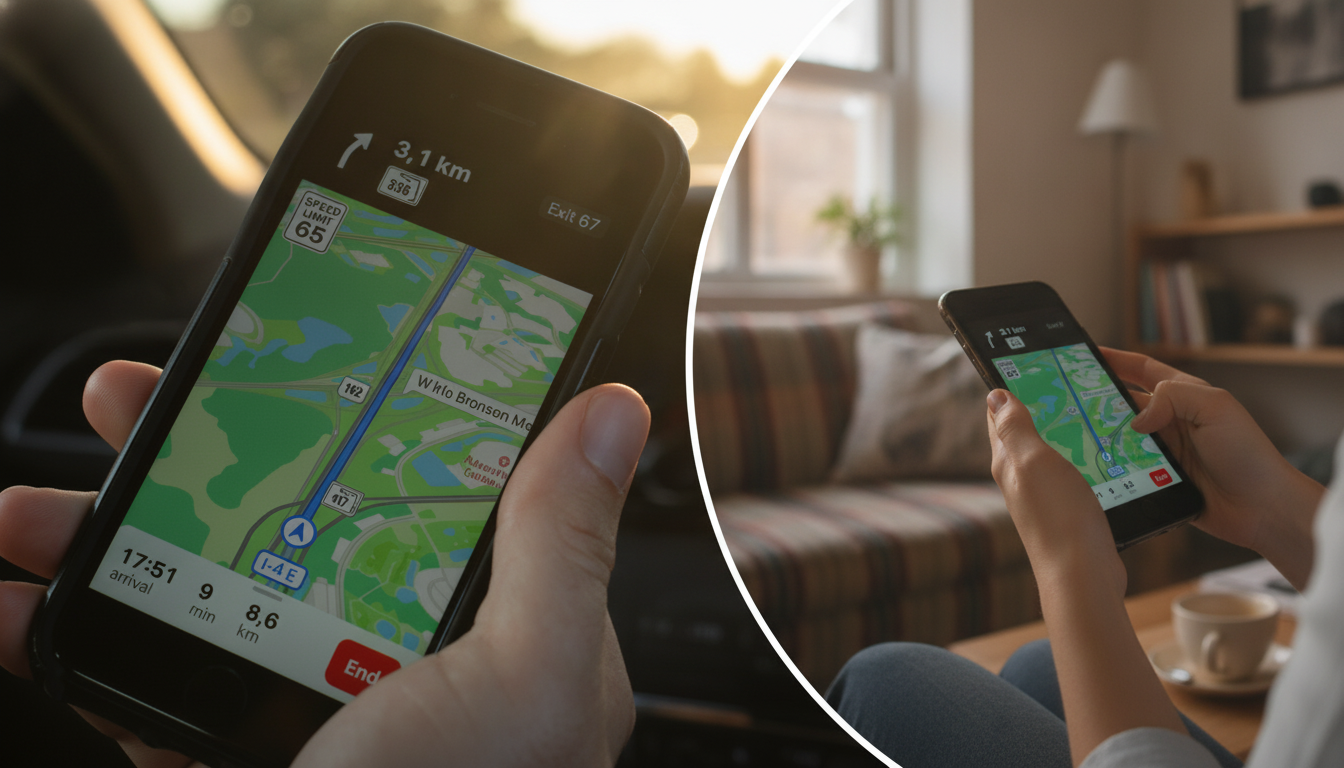
How Location Services Drain Your Battery
According to Novyny.live: Using GPS, cellular networks, Wi-Fi, and Bluetooth to pinpoint your location consumes significant power, causing your smartphone battery to deplete faster. This drain becomes especially noticeable when apps continuously access your location data.
A wide range of apps frequently request constant location access, including:
- weather forecast apps,
- delivery services,
- online shopping platforms,
- navigation tools,
- fitness trackers,
- social media platforms,
- and certain games.
These applications can dramatically accelerate battery discharge when left unchecked. Understanding how to adjust location settings is key to reducing energy waste and extending your device's runtime.
Configuring Location Settings on Android and iPhone
On Android, navigate to 'Settings', then 'Location', and finally 'App permissions'. From there, you can review and restrict which apps are allowed to access your whereabouts, helping you conserve battery life.
For iPhone users, the process is similar: go to 'Settings', select 'Privacy & Security', and then tap 'Location Services'. This menu gives you full control over which applications can use your location data.
Knowing how location services affect battery life and how to manage these settings empowers users to save power and keep their devices running longer throughout the day. As reliance on mobile apps grows, fine-tuning location access becomes essential for maintaining device convenience and efficiency. This awareness encourages more mindful technology use, turning simple adjustments into a practical daily habit.
Read also
- Turn Your Old Phone Into a Smart Display: Inside the New ScreenWall Web Platform
- Speed Record Set by Bombardier Global 8000: Los Angeles to Farnborough in Just 8 Hours 46 Minutes
- A New Augmented Reality Platform Lets You Read and Build 3D Comics
- How Artificial Intelligence Is Unlocking Billions in Real Estate Value
- Ukraine’s Air Defense Gets a Boost: New 'Hot Dog' Drone Takes Down Over 300 Targets
- Windows That Generate Power Even at Night: A New Solar Innovation