Main News









Advertising
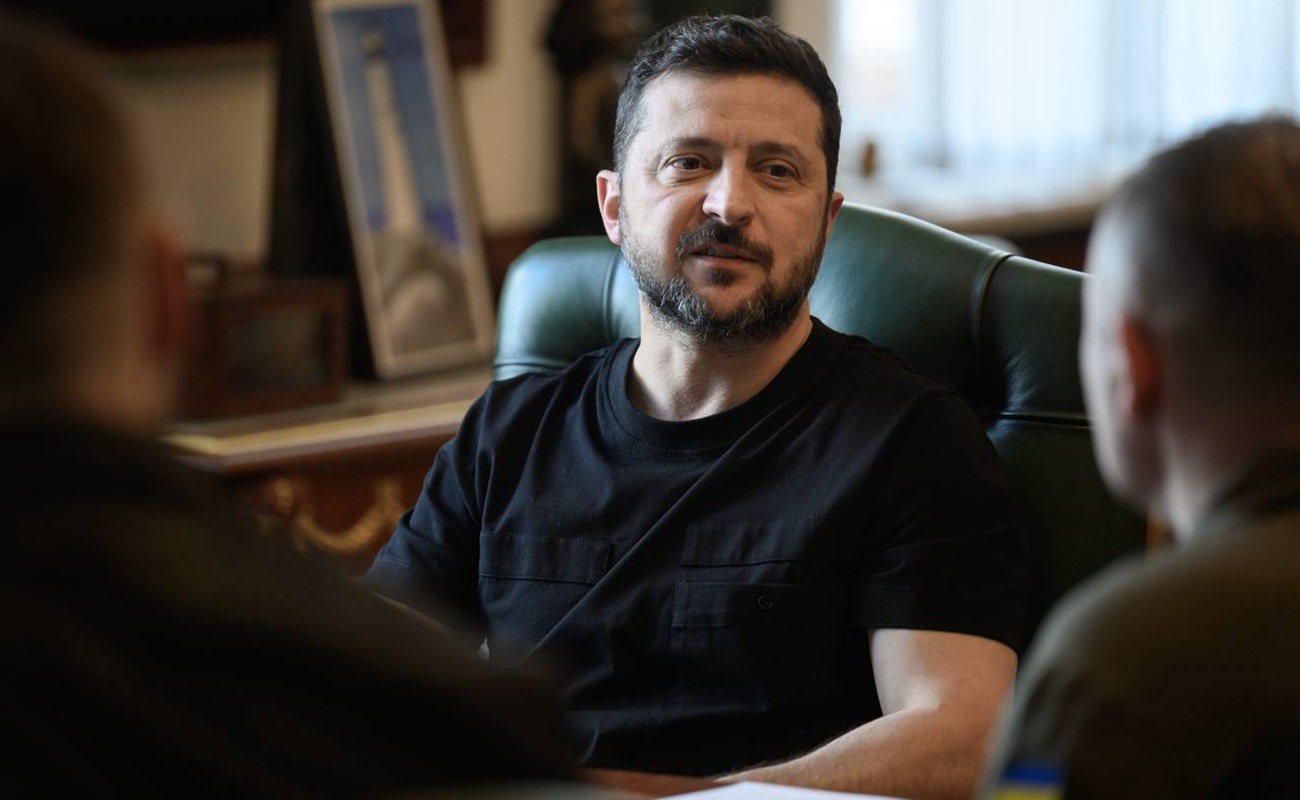
Zelensky and Top Military Command Outline Response Plan to Russian Strikes
yesterday, 18:24
542

EU's New Sanctions Package Targets Crypto Platforms Used to Bypass Restrictions
yesterday, 18:18
547

Advertising
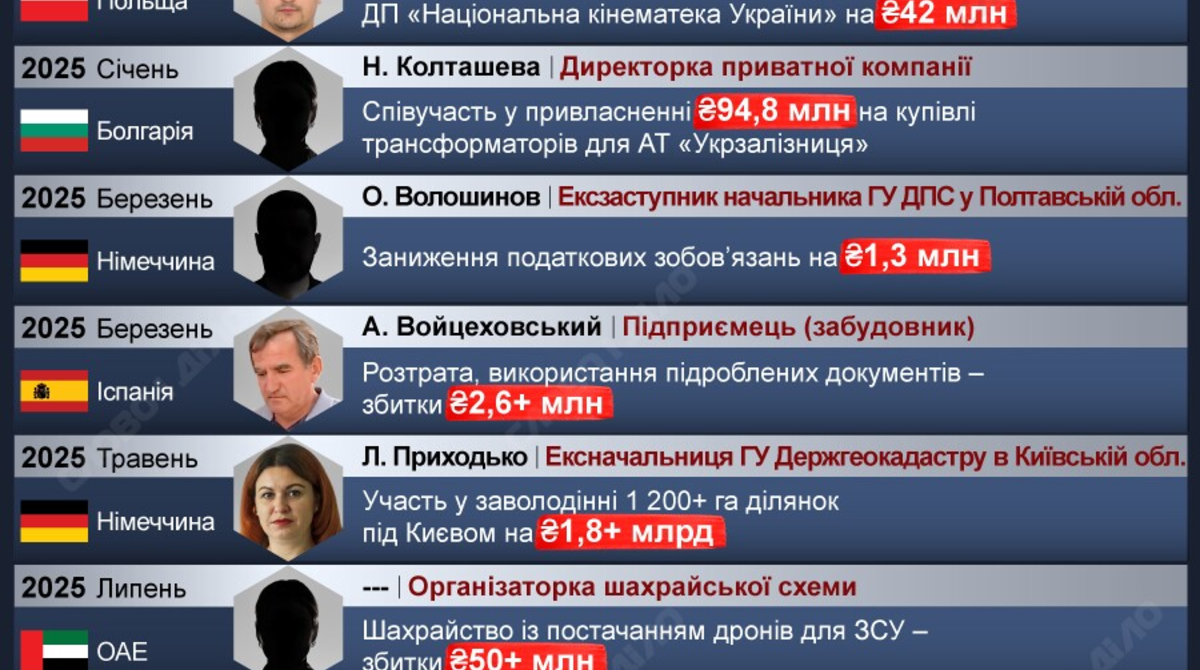
Ukraine Extradites Former Lawmaker Demchak in Major Push to Bring Back Suspects
yesterday, 18:06
545
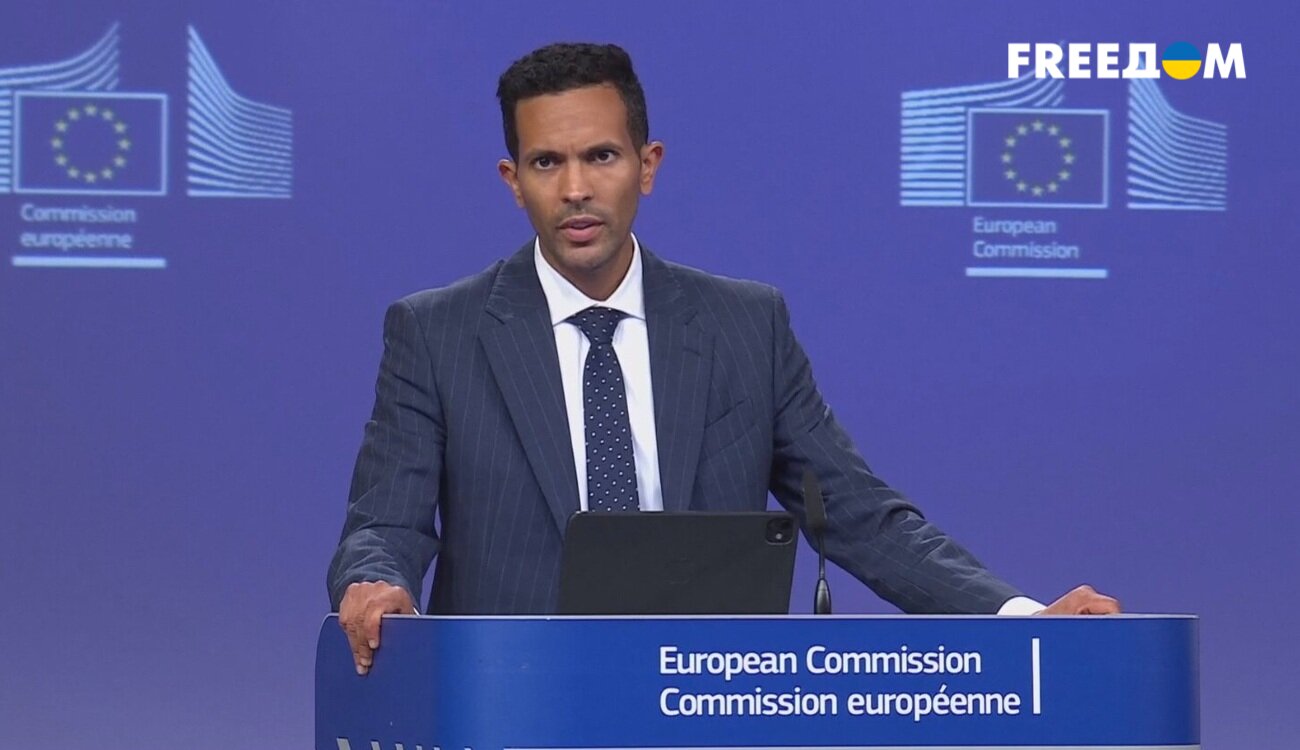
EU Adopts 21st Sanctions Package Against Russia: What the New Restrictions Target
yesterday, 17:30
547
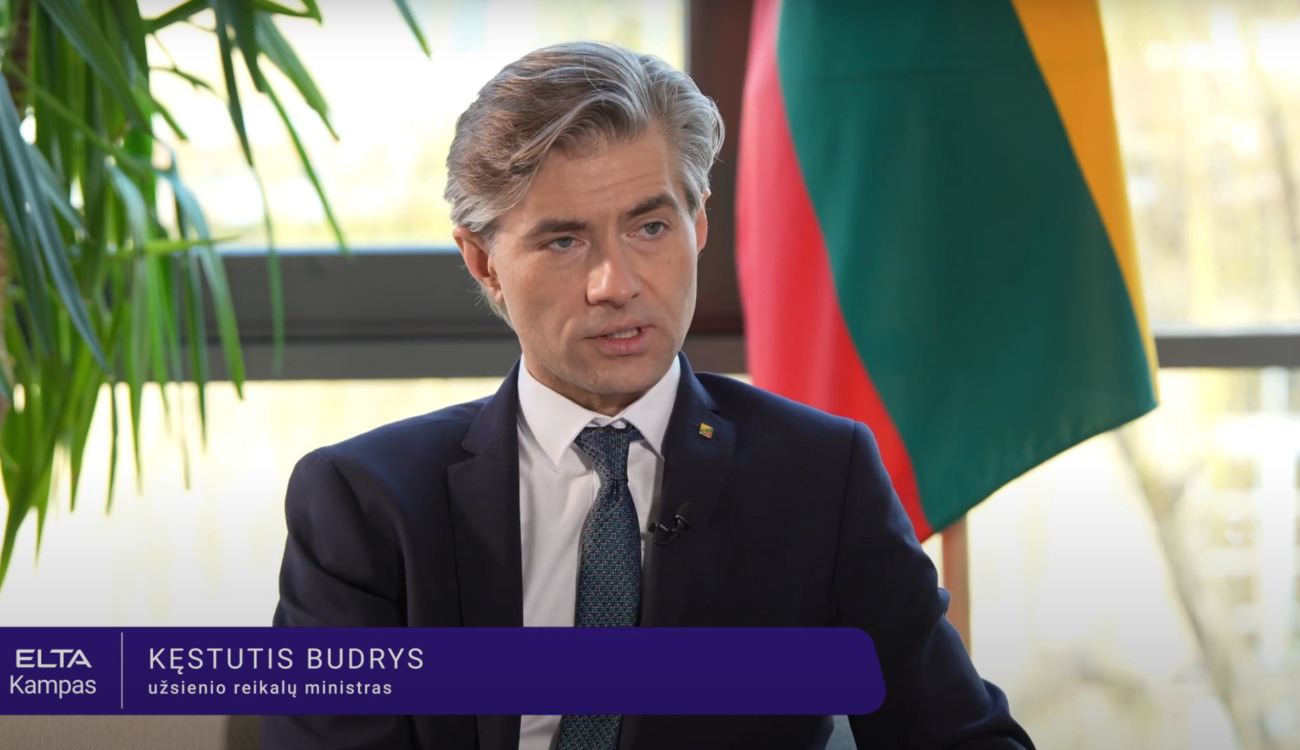
Lithuania Accuses EU Nations of Undermining Sanctions for Their Own Economic Gain
yesterday, 17:18
947
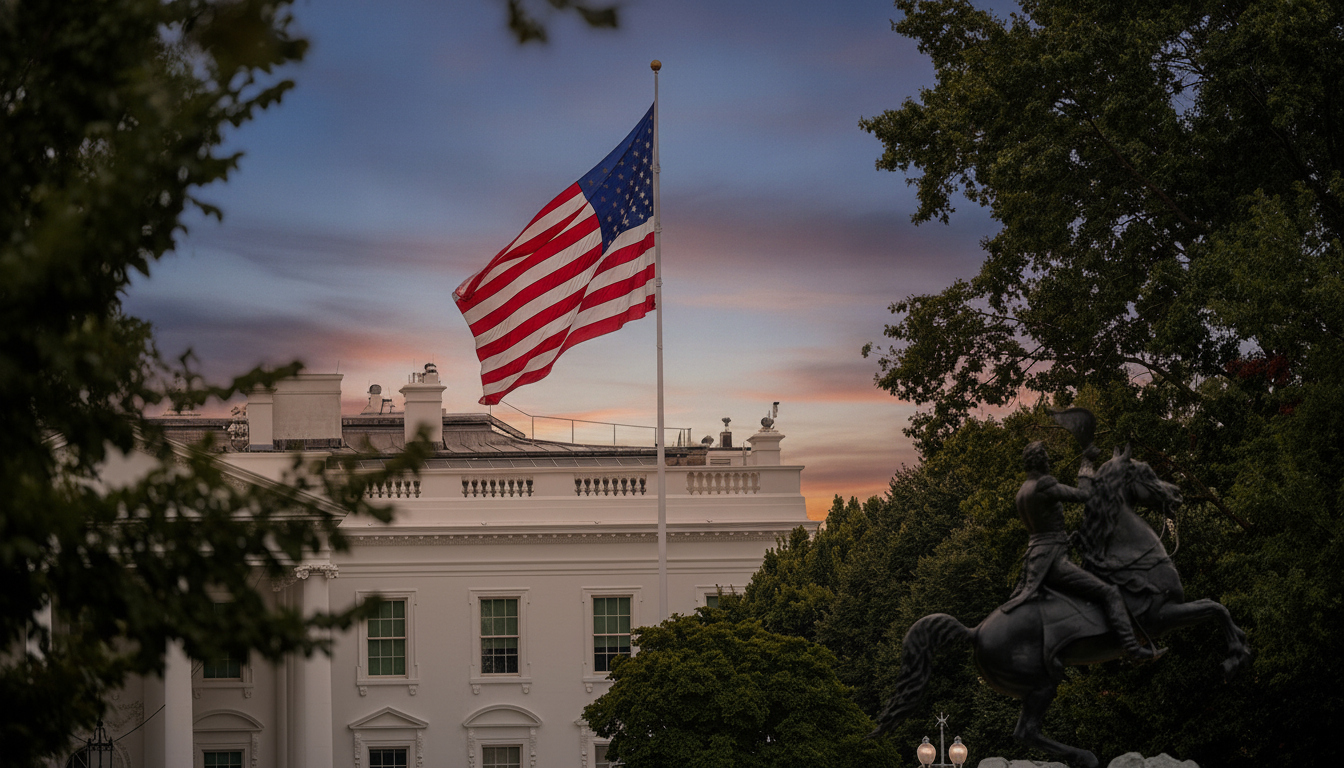
New U.S. Tariffs Hit 60 Nations: Here Are the Rates for the EU and Russia
yesterday, 18:42
577
IMF Disburses $690 Million Second Tranche to Ukraine: Where the Funds Are Going
Ukraine Receives Second IMF Payment On July 23, Ukraine secured approximately $690 million as the second tranche of financing from the International Monetary Fund (IMF) under a new four-year cooperation program. This latest disbursement has already been credited to the state budget. The funds are e...
23.07.2026
712
Horoscope
LIFESTYLE
Tourism




Tech
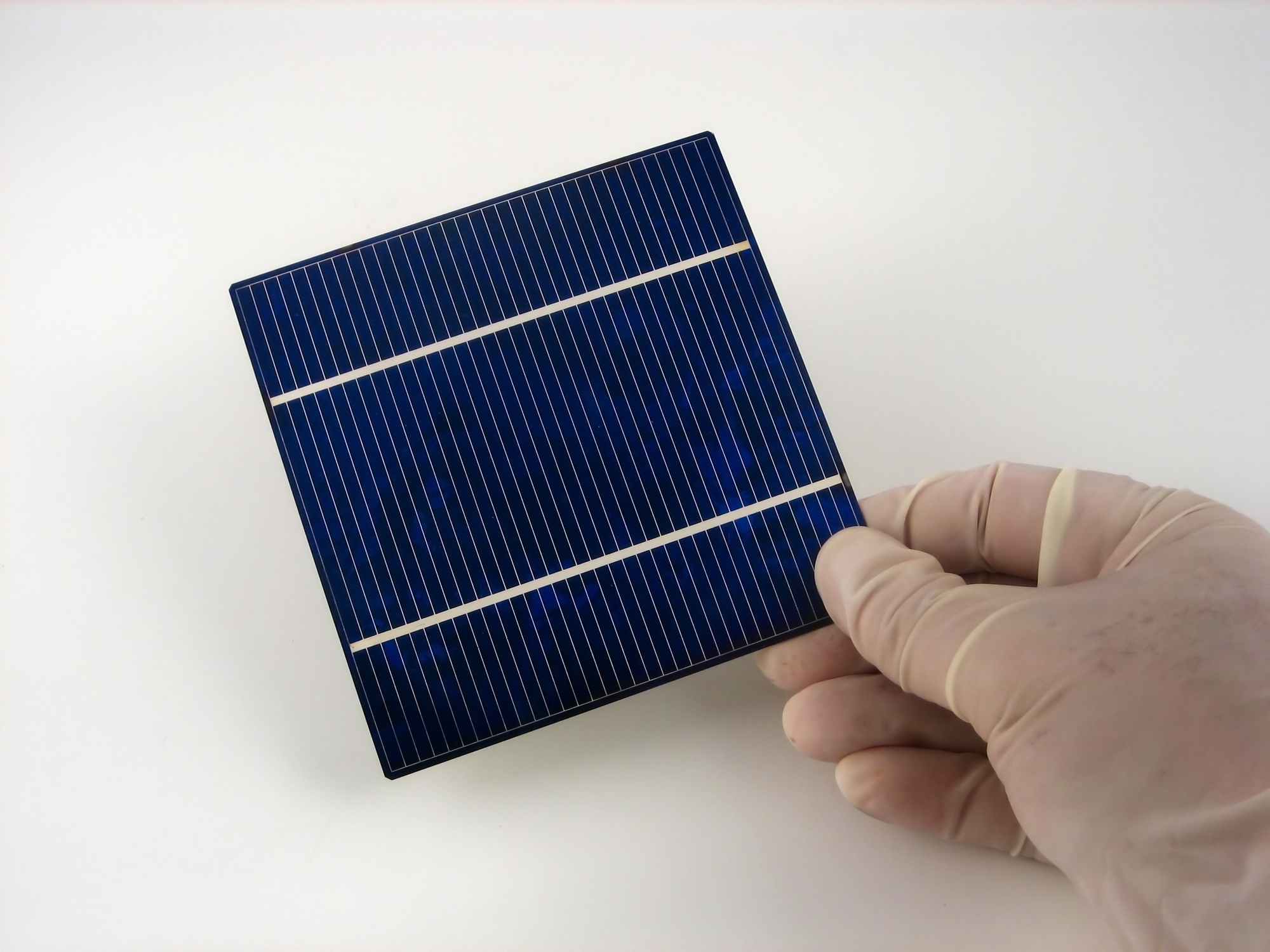
Antique Musket Balls Repurposed Into Solar Cells with 94% Efficiency
yesterday, 16:30
564
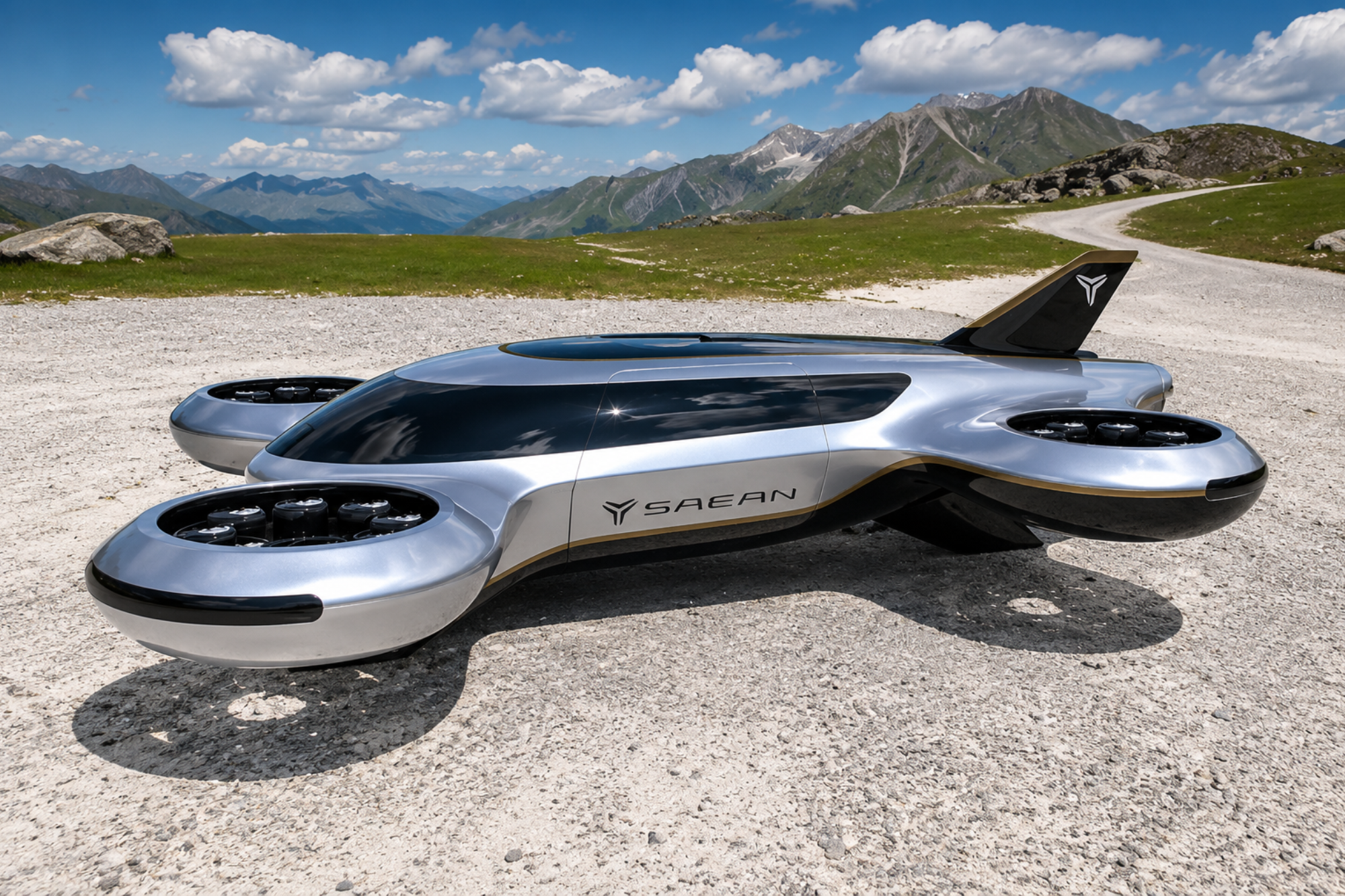
South Korea Patents a Silent Engine for Air Taxis
yesterday, 14:18
596
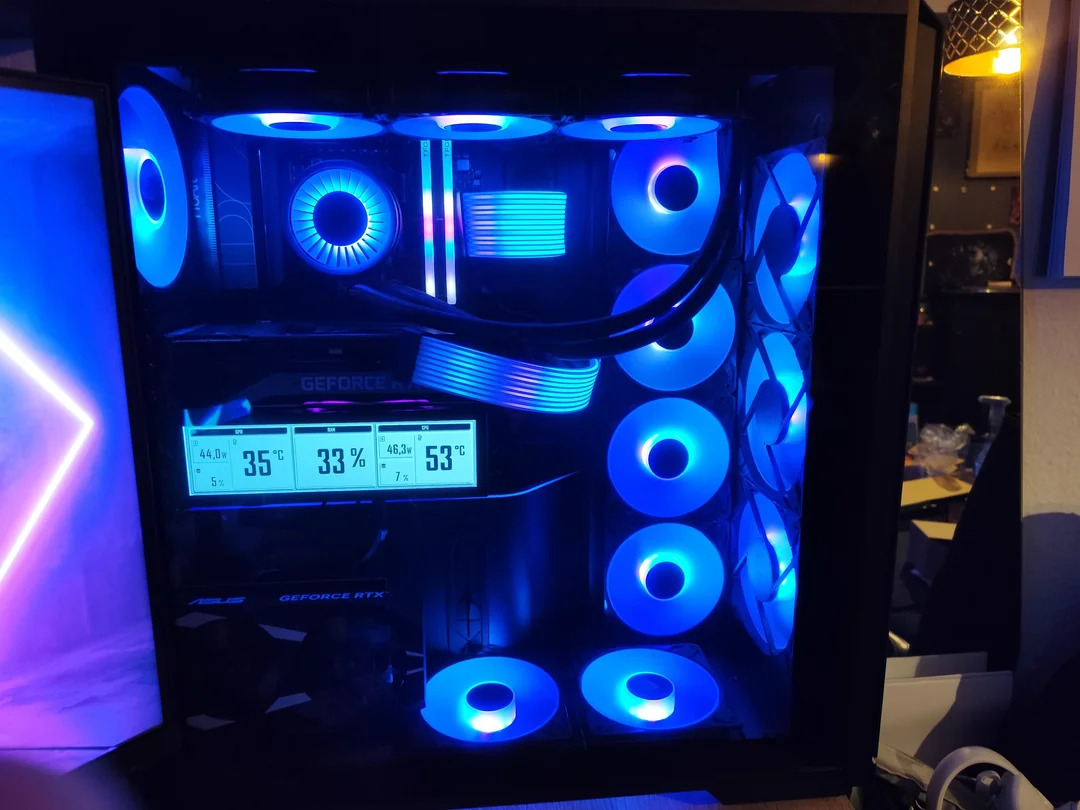
144 FPS at 4K: A Gamer Pairs an RTX 3090 and RTX 3050 for Stunning Performance
yesterday, 13:30
618
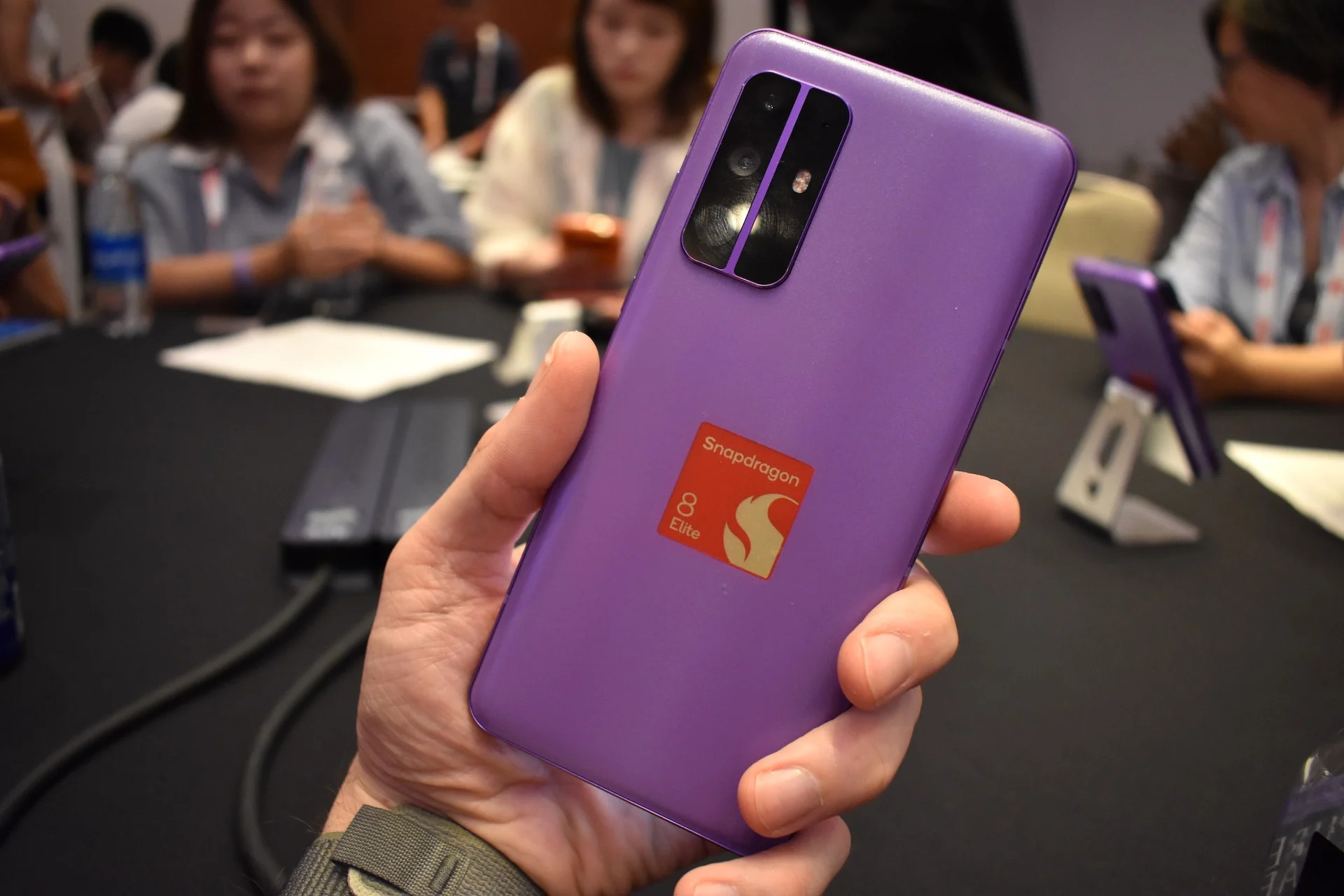
Snapdragon 8 Elite Gen 5: Qualcomm’s New Chip Targets Sub-$600 Smartphones
yesterday, 11:36
623
Society
Showbiz




The Best Heist Movies: A Top List of Captivating Crime Films
yesterday, 18:06
655
Yevgen Kaporin, 40, Weds 22-Year-Old Sofia: An 18-Year Age Gap
yesterday, 17:42
572
Sports



Five Common Travel Mistakes, According to a Woman Who Has Visited 38 Countries
yesterday, 14:36
581
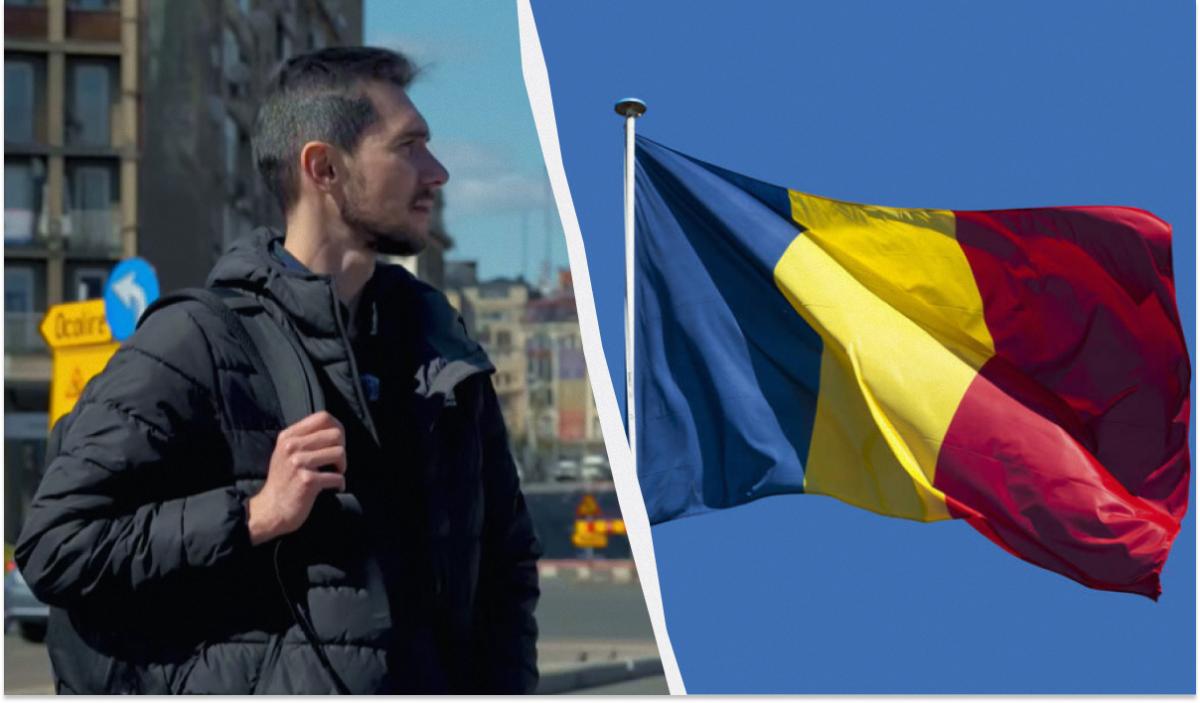
A Ukrainian Shares Insights on Life in Bucharest: Traffic Troubles and Coffee Costs
yesterday, 14:30
567
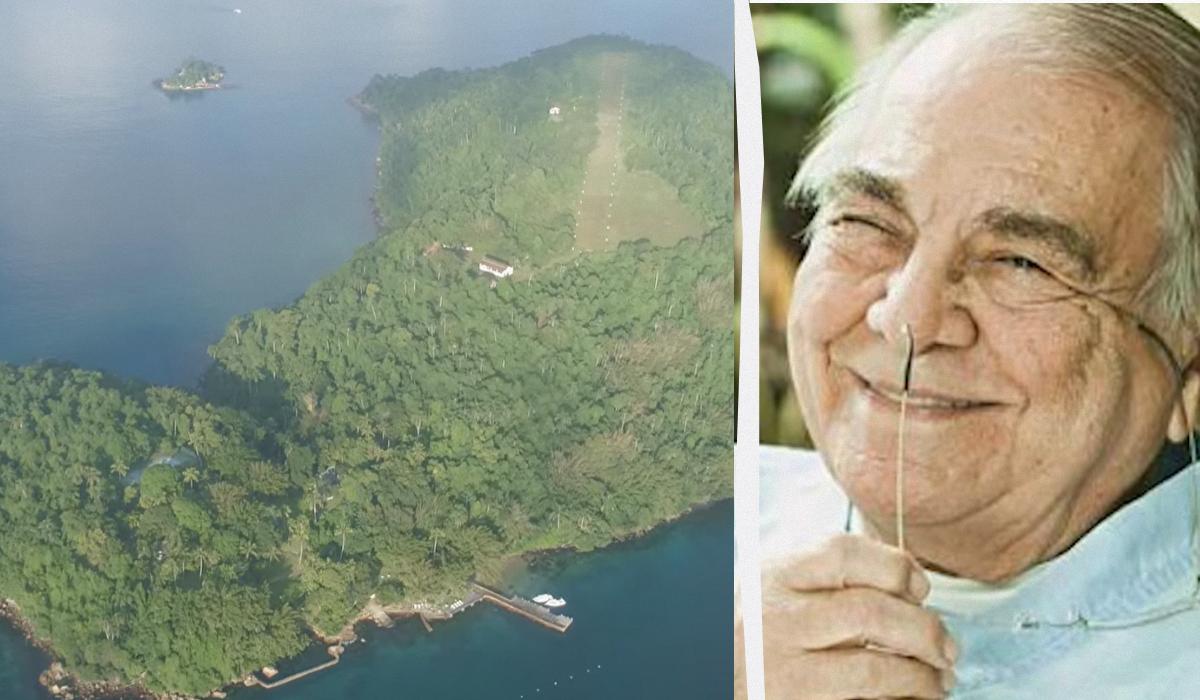
Famous Faces Who Vacationed on a $100 Million Private Island Near Rio
yesterday, 01:30
674
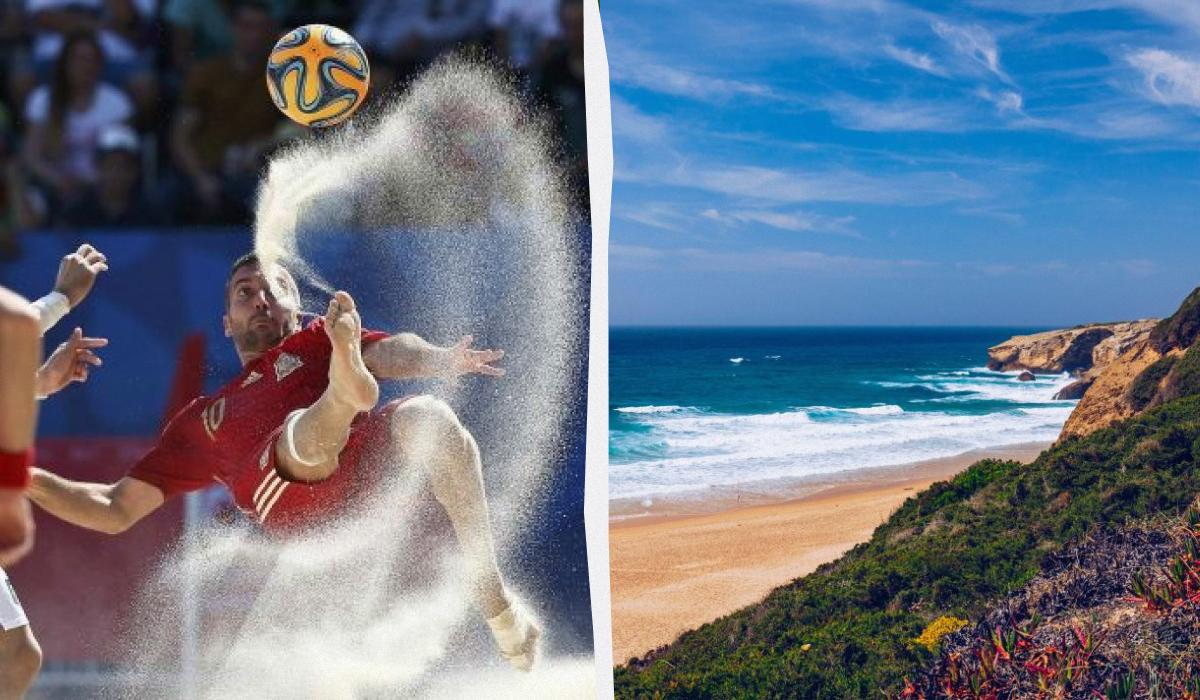
Portugal Slaps Tourists with Fines Up to €4,000: Beach Football and Fishing Banned
yesterday, 01:24
688